HAMi AI Platform Online Deployment Guide
This guide is intended for SREs and platform engineers. It explains how to deploy HAMi AI Platform on a Kubernetes cluster, integrate it with foundational components such as HAMi, Prometheus, NVIDIA GPU Operator, and Gateway API, and verify that the deployment works as expected.
⚠️ Installation ≠ Activation
After the Helm Charts are installed, the platform services can start. HAMi GPU virtualization and scheduling require license activation.
Installation itself does not require a license. Complete the software deployment first, then apply for and import the license.
Without activation, vGPU partitioning and scheduling are unavailable, and functional verification will fail.
Prerequisite Checks
-
Use a Kubernetes version supported by the selected Charts and provide an available default StorageClass. The administration host needs kubectl and Helm.
-
Prepare the NVIDIA driver and NVIDIA Container Toolkit on NVIDIA nodes.
-
Prepare the vendor driver, firmware and runtime on Ascend nodes.
-
Disable NVIDIA GPU Operator’s default device plugin when HAMi supplies the NVIDIA device plugin. Set devicePlugin.enabled=false in the GPU Operator Helm values.
kubectl cluster-info
kubectl version
kubectl get nodes -o wide
kubectl get storageclass
Online Installation
Before running the commands below, confirm that the current kubeconfig context points to the target cluster. Keep the values file for each Chart under version control. Contact Dynamia.ai technical support for access to commercial Charts, mainland China image registries, and production values.
Install HAMi Enterprise
helm install hami \
  oci://ghcr.io/dynamia-ai/charts/hami-enterprise \
  --version 2.10.0-r2 \
  --namespace hami-system \
  --create-namespace
See the HAMi Helm Chart Values Reference for the complete configuration.
For non-NVIDIA devices, enable the corresponding vendor under devices in the HAMi values. Ascend nodes require at least:
devices:
  ascend:
    enabled: true
    hamiVnpuCore: true
Install NVIDIA GPU Operator (NVIDIA Nodes Only)
NVIDIA GPU Operator is optional. If the nodes already have a compatible driver, NVIDIA Container Toolkit, and runtime configuration, you can skip it. See the HAMi NVIDIA GPU node prerequisites for the node setup and GPU Operator values. When installing or reusing GPU Operator, disable its bundled device plugin (devicePlugin.enabled=false) and CDI (cdi.enabled=false). This HAMi Enterprise deployment uses scheduler.useDownward, which is incompatible with CDI. Assess running GPU workloads before changing CDI settings on an existing cluster.
helm repo add nvidia https://helm.ngc.nvidia.com/nvidia && helm repo update

helm install --wait --generate-name \
  -n gpu-operator --create-namespace \
  nvidia/gpu-operator \
  --set devicePlugin.enabled=false \
  --set dcgmExporter.serviceMonitor.enabled=true \
  --set cdi.enabled=false \
  --version=v25.10.1
Install the Ascend Device Plugin (Ascend Nodes Only)
Complete the HAMi installation before this step. The following configuration reuses hami-scheduler-device so that multiple Charts do not manage the same device configuration.
nameOverride: "ascend-device-plugin"
fullnameOverride: "ascend-device-plugin"

image:
  repository: dynamia-ai-registry.cn-hangzhou.cr.aliyuncs.com/public/dynamia-ai/ascend-device-plugin
  tag: "v1.4.1"
  pullPolicy: IfNotPresent

config:
  create: false
  existingDeviceConfigMapName: hami-scheduler-device
helm install ascend-device-plugin \
  oci://ghcr.io/dynamia-ai/charts/ascend-device-plugin \
  --version 0.2.1 \
  --namespace hami-system \
  -f ascend-device-plugin.yaml
In addition to HAMi, HAMi AI Platform uses Kubernetes Gateway API with Envoy Gateway as its default service exposure mechanism. If the cluster does not already provide Gateway API resources , check with kubectl api-resources | grep gateway.networking.k8s.io/v1, then install the Gateway API standard channel before continuing.
If the cluster does not already have a Gateway API controller, install envoyproxy/envoy-gateway to expose services:
helm install eg \
  oci://docker.io/envoyproxy/gateway-helm \
  --version v1.6.2 \
  --namespace envoy-gateway-system \
  --create-namespace \
  --set global.images.envoyGateway.image=docker.io/envoyproxy/gateway:v1.6.2 \
  --set global.image.ratelimit.image=docker.io/envoyproxy/ratelimit:99d85510 \
  --set config.envoyGateway.gateway.controllerName=gateway.envoyproxy.io/gatewayclass-controller \
  --set config.envoyGateway.provider.type=Kubernetes
Install dynamia-ai/kantaloupe, the HAMi AI Platform service (referred to as kantaloupe below):
helm install kantaloupe \
  oci://dynamia-ai-registry.cn-hangzhou.cr.aliyuncs.com/public/charts/kantaloupe-chart \
  --version 0.20.1 \
  --namespace kantaloupe-system \
  --create-namespace \
  --set fullnameOverride=kantaloupe
kantaloupe provides settings for feature flags, service exposure, and monitoring integration. Configure them as required. For the complete values reference, see kantaloupe Helm Chart Values Reference.
These snippets use native Kantaloupe Chart values. Combine them directly for online Helm installation.
- Configure default platform administrator credentials
auth:
  jwtSecret: "<JWT_SIGNING_SECRET>"
  bootstrapAdminUsername: "bootstrap-platform-admin"
  bootstrapAdminPassword: "<ADMIN_PASSWORD>"
  bootstrapAdminFullName: "Platform Administrator"
  bootstrapAdminEmail: "admin@email.com"
- Expose Envoy Gateway through a NodePort Service and use an external load balancer (cloud-managed or self-managed) to forward Layer 4 traffic .
gateway:
  enabled: true
  hostnames:
    - your-domain.example.com
  apiserverCors:
    enabled: true
    allowCredentials: true
    allowOrigins:
      - https://your-domain.example.com
  envoy:
    service:
      ports:
        http:
          nodePort: 30080
        https:
          nodePort: 30443
      type: NodePort
  listeners:
    - name: http
      port: 80
      protocol: HTTP
    - name: https
      port: 443
      protocol: HTTPS
      tls:
        certificateRef:
          name: your-domain-tls-secret
        redirectFromHttp: true
- Use Envoy Gateway with a NodePort Service for a simple PoC
gateway:
  enabled: true
  listeners:
    - name: http
      port: 80
      protocol: HTTP
  envoy:
    service:
      type: NodePort
      ports:
        http:
          nodePort: 30080
- Use a LoadBalancer Service managed by a cloud provider or bare-metal load balancer controller
gateway:
  enabled: true
  hostnames:
    - your.domain
  listeners:
    - name: http
      port: 80
      protocol: HTTP
    - name: https
      port: 443
      protocol: HTTPS
      tls:
        certificateRef:
          name: your-tls-secret
        redirectFromHttp: true
  envoy:
    service:
      type: LoadBalancer
      ports:
        http: {}
        https: {}
- Override the Prometheus Query API address (default:
http://prometheus-kube-prometheus-prometheus.monitoring.svc.cluster.local:9090)
apiserver:
  prometheusAddr: http://your-prometheus-query-api.com:9090

controllerManager:
  prometheusAddr: http://your-prometheus-query-api.com:9090
Enable GPU Nodes
The HAMi NVIDIA device plugin starts on nodes labeled gpu=on. Apply this label to NVIDIA nodes that HAMi should manage. Ascend components use their own nodeSelector; gpu=on is not their selection rule.
kubectl label nodes <node-name> gpu=on
Install the Monitoring Stack (When Needed)
Monitoring is optional. Install kube-prometheus-stack only if metrics are needed and the cluster does not already have a compatible Prometheus or VictoriaMetrics installation. Otherwise, connect the existing monitoring system as described below.
helm install prometheus \
  oci://ghcr.io/prometheus-community/charts/kube-prometheus-stack \
  --version 72.3.0 \
  --namespace monitoring \
  --create-namespace \
  --set alertmanager.enabled=false \
  --set grafana.enabled=false
Nodes and Monitoring
kubectl describe node <node-name>
kubectl api-resources --api-group=monitoring.coreos.com
For Prometheus, match ServiceMonitor.metadata.labels to Prometheus.spec.serviceMonitorSelector and check the namespace selector. For VictoriaMetrics Operator, VMAgent.spec.serviceScrapeSelector selects VMServiceScrape.metadata.labels; also check serviceScrapeNamespaceSelector and any ServiceMonitor conversion.
Check that the relevant scrape targets report up=1, then query the current NVIDIA metrics and confirm that they return data:
-
DCGM_FI_DEV_GPU_UTIL -
hami_host_gpu_utilization_ratio -
hami_gpu_core_allocated_ratio
In addition to exporter metrics, you also need to query kantaloupe_gpu_temp to verify that kantaloupe service metrics are being collected correctly.
License Acquisition
Start license activation once the HAMi core and required platform services are ready. Optional GPU Operator, Ascend, and monitoring components need not be installed first.
Use either method below to obtain the license request information. If the HAMi AI Platform site is not yet accessible, use the collection script.
Use HAMi AI Platform
-
Sign in to HAMi AI Platform with a platform administrator account.
-
Open License and System Information .
-
Follow the instructions on the page to obtain the license request information.
Run the Collection Script
The collection script requires kubectl and jq:
# Download and run the script
curl -fsSL https://public.hami.run/collect-hami-license-info.sh | bash

# Run a local copy provided with the delivery materials
bash collect-hami-license-info.sh
The command outputs JSON in the following format:
{
  "esn": "96565d61-986a-4918-aafb-448ff6e3746b",
  "deviceInstances": [
    {
      "uuid": "GPU-ceee905d-48ac-93de-a81b-17c00e1e5e02",
      "deviceType": "NVIDIA A10"
    }
  ]
}
Send the license request information to Dynamia.ai sales, pre-sales, or delivery personnel, then complete activation as instructed.
Post-Activation Verification
# 1. Check Pod status
kubectl -n hami-system get pods

# 2. Check GPU resources registered by the device plugin
kubectl describe node <gpu-node> | grep -A 5 "Capacity:"
# Expected: nvidia.com/gpu: <N> and nvidia.com/gpumem: <MB>

# 3. Check license events generated by the scheduler
kubectl get events --field-selector involvedObject.name=hami-license -n hami-system
Expected: all HAMi Pods are running, GPU resources are registered on GPU nodes, and the hami-license event reports that the license was validated successfully. Then open License and System Information in HAMi AI Platform and confirm that the license status and scope are correct.
HAMi AI Platform Verification
# 1. Pod Status
kubectl -n kantaloupe-system get pods

# 2. Service Accessibility
kubectl -n kantaloupe-system get svc
After the HAMi AI Platform service is exposed, open the site and confirm that the frontend and backend are working normally.
Create Workload
On the console Workload page, create an application such as gpu-burn. Make sure its image is available from a registry accessible to the cluster, then verify that the workload runs.
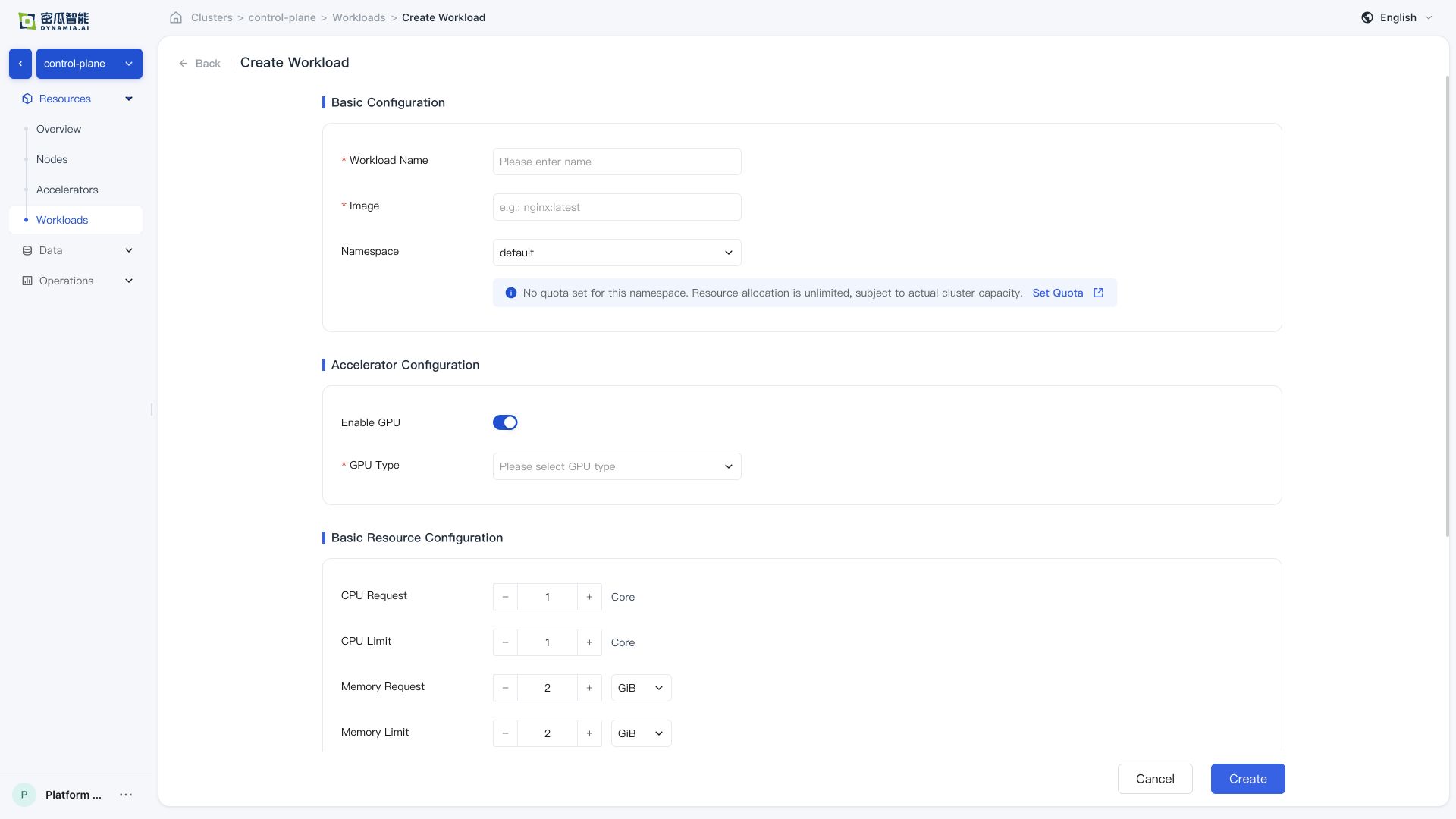
After creation, confirm that the following verification items all pass:
-
Creation successful , no errors in the console
-
Workload list : application status, search, list metrics, and monitoring panels (GPU SM / GPU MEM / CPU / Memory) are normal; time switching and charts meet expectations
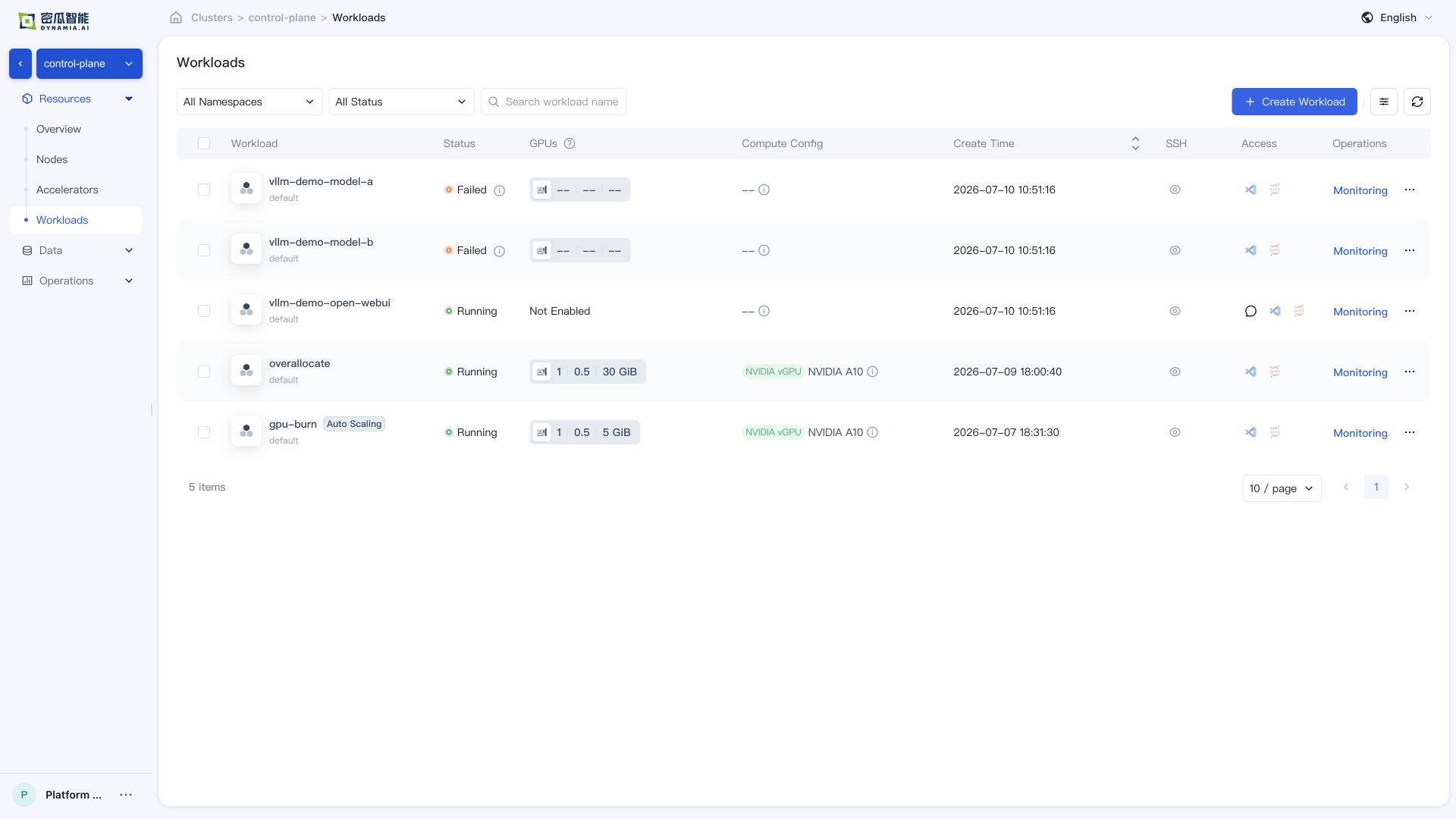
- Application details : basic information, resource overview, and monitoring data are normal; navigating from the detail page to the GPU / Node page, resource overview and monitoring data are normal
Online Sample Workload Verification
Before running this example, confirm that the target cluster can pull nvidia/cuda:12.4.0-base-ubuntu22.04. If the cluster uses a private registry, mirror the image first and update the image reference in the example.
kubectl delete pod hami-smoke --ignore-not-found

kubectl apply -f - <<'EOF'
apiVersion: v1
kind: Pod
metadata:
  name: hami-smoke
spec:
  restartPolicy: Never
  containers:
    - name: cuda
      image: nvidia/cuda:12.4.0-base-ubuntu22.04
      command: ["sh", "-c", "nvidia-smi && sleep 30"]
      resources:
        limits:
          nvidia.com/gpu: 1
          nvidia.com/gpumem: 2000
EOF

kubectl wait --for=condition=Ready pod/hami-smoke --timeout=180s
kubectl logs hami-smoke
If the Pod reaches Ready and the logs show GPU information, HAMi has scheduled the GPU and the NVIDIA runtime is available inside the container. Delete the test Pod after verification.
kubectl delete pod hami-smoke
Common Issues
| Symptom | Possible Cause | Resolution |
|---|---|---|
| Image pull fails | The node cannot reach the image registry, registry authentication is missing or invalid, or the image reference is incorrect | Inspect the Pod events and image reference, verify node DNS and network access to the registry, and configure the required image pull credentials. |
hami-device-plugin Pod is Pending or missing | The node is not labeled gpu=on | kubectl label nodes <node> gpu=on |
hami-device-plugin Pod is in CrashLoopBackOff | It conflicts with the default NVIDIA device-plugin | Disable the default NVIDIA device plugin. In the GPU Operator Helm values, set devicePlugin.enabled=false. |
| HAMi metrics are unavailable | The serviceMonitorSelector of the Prometheus resource does not match the labels on the ServiceMonitor resource | Align monitoring/prometheus-kube-prometheus-prometheus spec.serviceMonitorSelector with the labels on the HAMi ServiceMonitor, and check serviceMonitorNamespaceSelector. |
nvidia-smi reports an error | The GPU driver is not ready | Check the driver Pod status in the gpu-operator Namespace. |
Sample workload remains Pending | The license is not activated, GPU capacity is insufficient, or node labels are missing | Check the license, GPU node labels, and kubectl describe pod events. |
Gateway has no ingress address | Gateway API or Envoy Gateway CRDs are not ready, the Envoy Gateway release is unhealthy, or the Envoy Service type is unsuitable for the cluster | Check that the required Gateway API and Envoy Gateway CRDs are Established, then inspect the Envoy Gateway Helm release, Gateway conditions and Envoy Service. Do not delete CRDs as a retry step. |
Support
-
Email: info@dynamia.ai
-
Sales / technical support: 400-026-7800
-
Customers with active commercial agreements should submit support requests through their dedicated support channel.