Introduction
HAMi Enterprise licenses are bound to cluster hardware - we need specific cluster information to generate a valid license file. This guide covers the end-to-end process: installation verification, license request, and activation.
The workflow:
-
Complete the Pre-Activation Checklist to verify the cluster is ready
-
Obtain license request information from your cluster and send it to Dynamia AI
-
Receive the License file by email and activate it
Trial licenses default to 1 month, up to 8 GPUs. Larger or longer deployments require separate approval.
Pre-Activation Checklist
Before you begin, make sure all of the following conditions are met. Every item is required:
| Requirement | Description |
|---|---|
| HAMi | The cluster has been deployed and is running normally, and HAMi Enterprise / HAMi AI Platform has been installed |
kubectl access | The role associated with the current kubeconfig has permission to create and update secrets resources in the hami-system namespace |
HAMi Enterprise Edition
Request a License
HAMi core components must be ready before collecting license information. Optional GPU Operator, Ascend, and monitoring components are not prerequisites.
Run the following script to collect license request information (requires kubectl and jq):
curl -fsSL https://public.hami.run/collect-hami-license-info.sh | bash
Send the resulting JSON to dynamia sales or technical support to obtain a License file.
Receive the License
After Dynamia AI issues the license, the sales team will deliver the License file by email.
Save the file to an operations machine that can access the target Kubernetes cluster through kubectl.
Create the License Secret
Run the following command to create a Kubernetes Secret from the License file:
kubectl create secret generic hami-license \
  --from-file=license=/path/to/your License file \
  -n hami-system
Expected output:
secret/hami-license created
Add the License Label
After the Secret is created successfully, run:
kubectl label secret hami-license \
  hami.io/license="true" \
  -n hami-system
Expected output:
secret/hami-license labeled
At this point, the HAMi Enterprise License has been deployed successfully.
Check Scheduler Events
View the Kubernetes events for secret/hami-license.
kubectl get events --field-selector involvedObject.name=hami-license -n hami-system
Expected output:
LAST SEEN   TYPE     REASON         OBJECT                MESSAGE
3m49s       Normal   LicenseValid   secret/hami-license   license c90a9410-5f94-44fd-95b8-XXXXXXXX validated successfully in secret hami-system/hami-license: expire_time=2027-06-18 08:01:51.85 +0000 UTC
Check the latest event associated with this import. Successful validation has type Normal, reason LicenseValid, and a message containing validated successfully. Confirm that expire_time matches the issued license and is still in the future.
The existence of the hami-license Secret alone does not prove that the license is valid. No matching events does not indicate success. If validation fails, follow the event message or contact dynamia technical support.
HAMi AI Platform Edition
Request a License
HAMi core and platform services must be ready before collecting license request information. Optional GPU Operator, Ascend, and monitoring components are not prerequisites.
-
Log in to HAMi AI Platform with a
Platform Administratoraccount. -
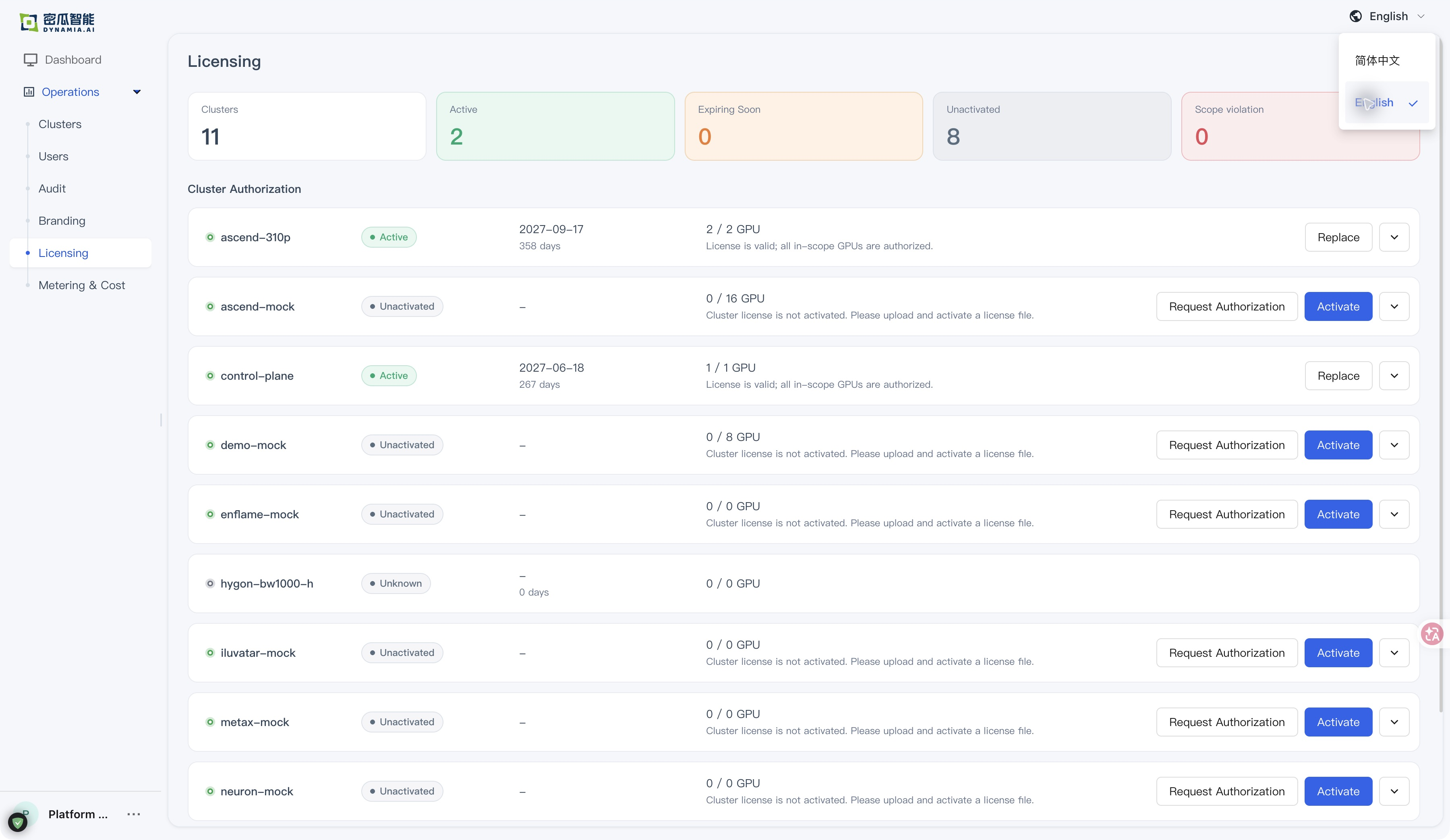
Open Operations → Licensing and find the target cluster.
-
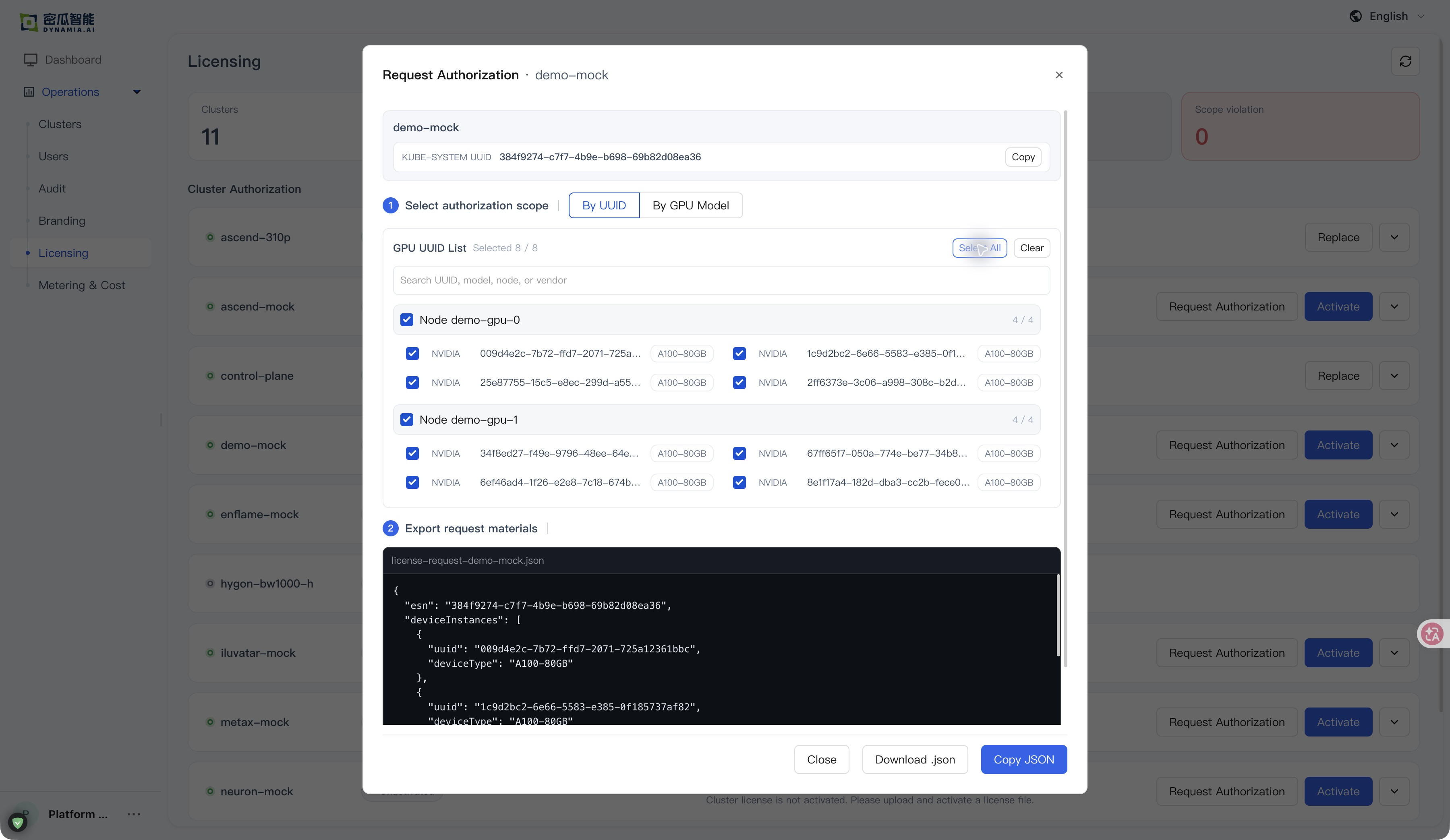
Click Request Authorization on the target cluster card, select the authorization scope, and use Download .json or Copy JSON to obtain the request materials.
-
Send the license request information to Dynamia AI sales or delivery personnel.
-
Complete activation according to the guidance provided.
Receive the License
After Dynamia AI issues the license, the sales team will deliver the License file by email.
Activate the License
-
Log in to HAMi AI Platform with a
Platform Administratoraccount. -
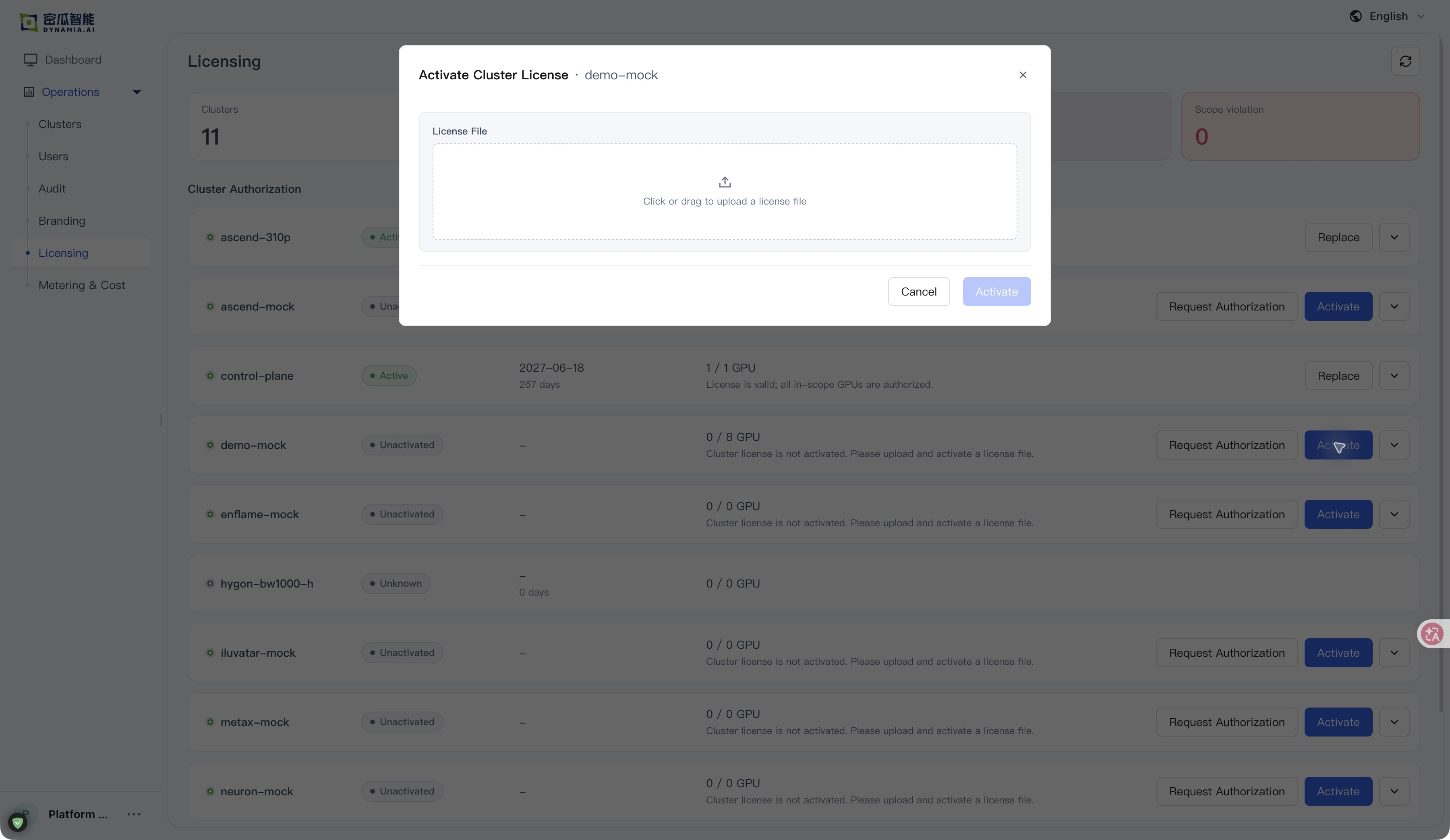
Open Operations → Licensing and find the target cluster.
-
Click Activate on the target cluster card, or Replace if a license is already installed. Select the License file received by email.
-
After uploading the file, click Activate .
-
Wait for the system to complete validation.
Check Scheduler Events
View the Kubernetes events for secret/hami-license.
kubectl get events --field-selector involvedObject.name=hami-license -n hami-system
Expected output:
LAST SEEN   TYPE     REASON         OBJECT                MESSAGE
3m49s       Normal   LicenseValid   secret/hami-license   license c90a9410-5f94-44fd-95b8-XXXXXXXX validated successfully in secret hami-system/hami-license: expire_time=2027-06-18 08:01:51.85 +0000 UTC
Check the latest event associated with this import. Successful validation has type Normal, reason LicenseValid, and a message containing validated successfully. Confirm that expire_time matches the issued license and is still in the future.
The existence of the hami-license Secret alone does not prove that the license is valid. No matching events does not indicate success. If validation fails, follow the event message or contact dynamia technical support.
Validation Results
Please confirm the following:
-
The License status is displayed as "Active".
-
The product and authorization scope match the purchased items.
-
The License expiration time is correct.
-
Platform features can be used normally.
Validation
Run a Sample Workload (NVIDIA only)
Deploy the following sample Pod to confirm that GPU resources can be scheduled and used normally by HAMi:
apiVersion: v1
kind: Pod
metadata:
  name: gpu-pod
spec:
  containers:
    - name: ubuntu-container
      image: ubuntu:22.04
      command: ["bash", "-c", "sleep 86400"]
      resources:
        limits:
          nvidia.com/gpu: 1 # declare how many physical GPUs the pod needs
          nvidia.com/gpumem: 3000 # identifies 3000M GPU memory each physical GPU allocates to the pod (Optional,Integer)
          nvidia.com/gpucores: 30 # identifies 30% GPU GPU core each physical GPU allocates to the pod (Optional,Integer)
Deploy and verify:
# Deploy the sample Pod
kubectl apply -f gpu-pod.yaml

# Wait until the Pod enters the Running state
kubectl get pod gpu-pod -w

# Enter the container and run nvidia-smi to confirm GPU resources are visible
kubectl exec -it gpu-pod -- nvidia-smi
Expected result: the Pod is in the Running state, and nvidia-smi can see the allocated GPU resources inside the container. The visible GPU memory and compute capacity are constrained by gpumem / gpucores.
License Update or Renewal
HAMi Enterprise Edition
If the hami-license Secret already exists in the cluster, delete the existing Secret first:
kubectl delete secret hami-license -n hami-system
Then recreate it using the new License file:
kubectl create secret generic hami-license \
  --from-file=license=/actual/path/to/the/License/file \
  -n hami-system
Add the label again:
kubectl label secret hami-license \
  hami.io/license="true" \
  -n hami-system
Check the scheduler events:
View the Kubernetes events for secret/hami-license.
kubectl get events --field-selector involvedObject.name=hami-license -n hami-system
Expected output:
LAST SEEN   TYPE     REASON         OBJECT                MESSAGE
3m49s       Normal   LicenseValid   secret/hami-license   license c90a9410-5f94-44fd-95b8-XXXXXXXX validated successfully in secret hami-system/hami-license: expire_time=2027-06-18 08:01:51.85 +0000 UTC
Check the latest event associated with this import. Successful validation has type Normal, reason LicenseValid, and a message containing validated successfully. Confirm that expire_time matches the issued license and is still in the future.
The existence of the hami-license Secret alone does not prove that the license is valid. No matching events does not indicate success. If validation fails, follow the event message or contact dynamia technical support.
Usually no restart is required. Wait about 60 seconds, then check scheduler events again to confirm that the updated License passed validation and has the expected expiration time.
HAMi AI Platform Edition
After receiving a new License file, open Operations → Licensing, find the target cluster, and click Replace to upload and activate it.
FAQ
What happens if the License expires?
-
Existing AI workloads that are already running are not affected to preserve business continuity
-
New scheduling requests will no longer be accepted, and existing services that restart will no longer be schedulable
-
Recovery : replace the Secret, and it will reactivate automatically within 60 seconds
Can one License be used for multiple clusters?
- No. Each License is bound to exactly one cluster.
How do I renew in an offline air-gapped environment?
-
The SE delivers the new license file through the customer channel (email / USB drive)
-
The customer activates it again
-
No restart is required. It takes effect within 60 seconds, with no Internet connectivity at all
Get Support
If you encounter any issues during activation or validation, contact Dynamia AI through the following channels:
-
Technical support email: it@dynamia.ai
-
Official website: https://dynamia.ai
If you encounter issues such as license exceptions, unregistered GPU nodes, or failed License updates, contact the Dynamia AI technical support team.